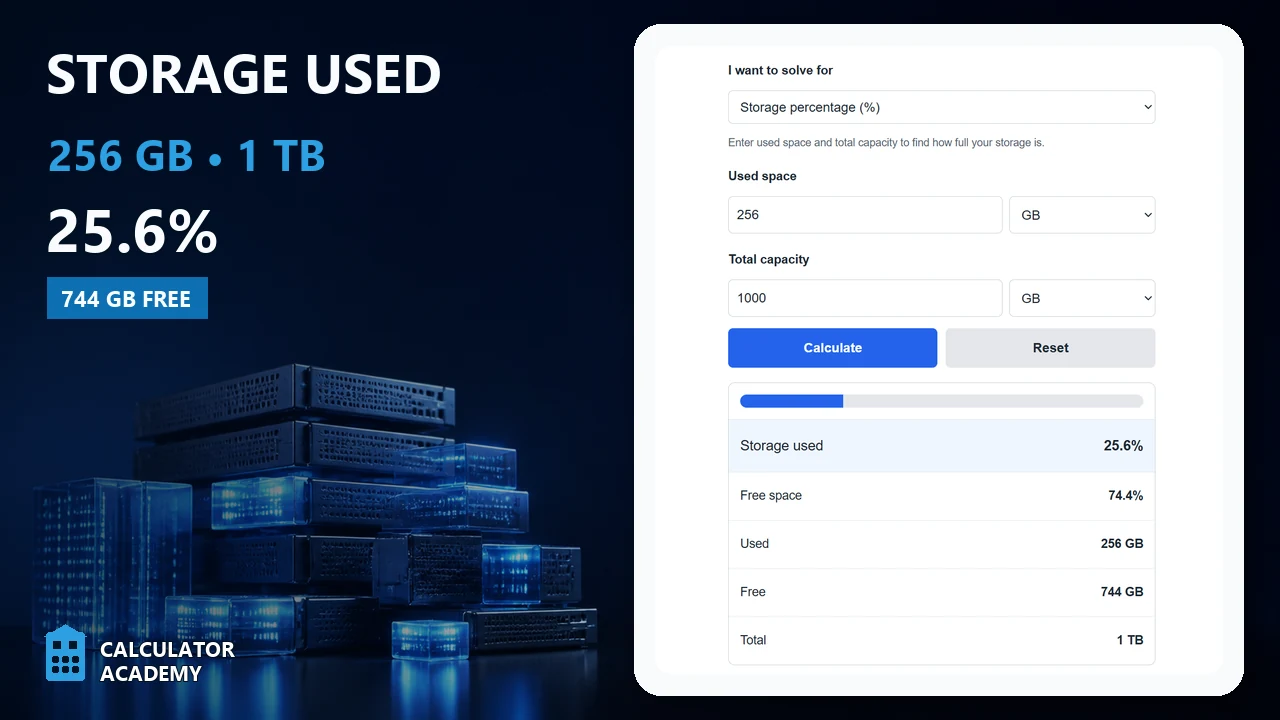
Calculate storage percentage, used space, or total capacity by entering any two values with units from bytes to terabytes to find the missing value.
Related Calculators
- Capacity Percentage Calculator
- Drive Capacity Calculator
- Backup Capacity Calculator
- Array Capacity Calculator
- Call Recording Storage Calculator
- GB to Minutes Calculator
- All Unit Converters
Storage Percentage Formula
Storage percentage measures how much of a device, drive, or storage plan is currently in use. It is a simple utilization ratio that helps you monitor capacity, estimate remaining room, and decide when cleanup or expansion is needed.
- SP = storage percentage
- US = used space
- TS = total space
The formula works for any storage unit, including bytes, KB, MB, GB, and TB. The only rule is that used space and total space must be in the same unit before calculating.
Rearranged Formulas
If you know the percentage and one other value, you can solve for the missing variable.
- FS = free space
- RP = remaining percentage
How to Calculate Storage Percentage
- Determine the amount of used space.
- Determine the total storage capacity.
- Convert both values to the same unit if needed.
- Divide used space by total space.
- Multiply the result by 100 to express it as a percentage.
If the calculator is being used to solve for total space or used space instead, the rearranged formulas above let you work backward from the known percentage.
Example
If a drive has 250 GB used out of 500 GB total capacity:
That means the storage is 50% full.
You can also find the unused capacity:
So the device has 250 GB free and 50% of its capacity remaining.
Why Storage Percentage Matters
- Capacity planning: shows how close a drive or storage pool is to full.
- Performance monitoring: heavily filled storage can become harder to manage efficiently.
- Budgeting: helps estimate when additional storage may be needed.
- System maintenance: makes it easier to spot when cleanup, archiving, or migration should happen.
- Quota tracking: useful for user accounts, cloud plans, and shared storage environments.
Quick Interpretation Guide
| Storage Used | What It Usually Means | Typical Action |
|---|---|---|
| 0% to 50% | Plenty of capacity remains | Normal usage |
| 50% to 80% | Moderate utilization | Monitor growth |
| 80% to 90% | Limited remaining room | Review large files and plan ahead |
| 90% to 100% | Nearly full | Clean up, archive, or expand storage soon |
| Above 100% | Inputs are inconsistent or units were mixed | Recheck the values entered |
Common Input Mistakes
- Mixing units: entering used space in GB and total space in TB without converting.
- Using free space instead of used space: if only free space is known, subtract it from total space first.
- Total space equal to zero: the total must be greater than zero for the calculation to work.
- Rounding too early: keep more digits during calculation, then round the final percentage.
Tips for Accurate Results
- Use the same storage base across both values.
- Enter raw capacity numbers carefully, especially for large drives.
- Check whether you are calculating used percentage or free percentage.
- For recurring monitoring, compare percentage over time rather than looking at a single reading once.
Common Use Cases
- Hard drives and SSDs
- USB drives and memory cards
- Phones and tablets
- Servers and NAS devices
- Cloud storage plans
- Email or account storage quotas
- Project folders, backups, and media libraries
Frequently Asked Questions
Does the percentage change if I use MB instead of GB?
No. As long as both used space and total space are expressed in the same unit, the percentage stays the same.
How do I find remaining storage?
Subtract used space from total space.
How do I find the percentage still available?
Subtract the used percentage from 100.
What if my answer is greater than 100%?
That usually means the inputs do not match, the units are inconsistent, or the used space entered is larger than the total space.